Taking Better Photos of Sheet Music: 7 Tips for a Near-Perfect Scan
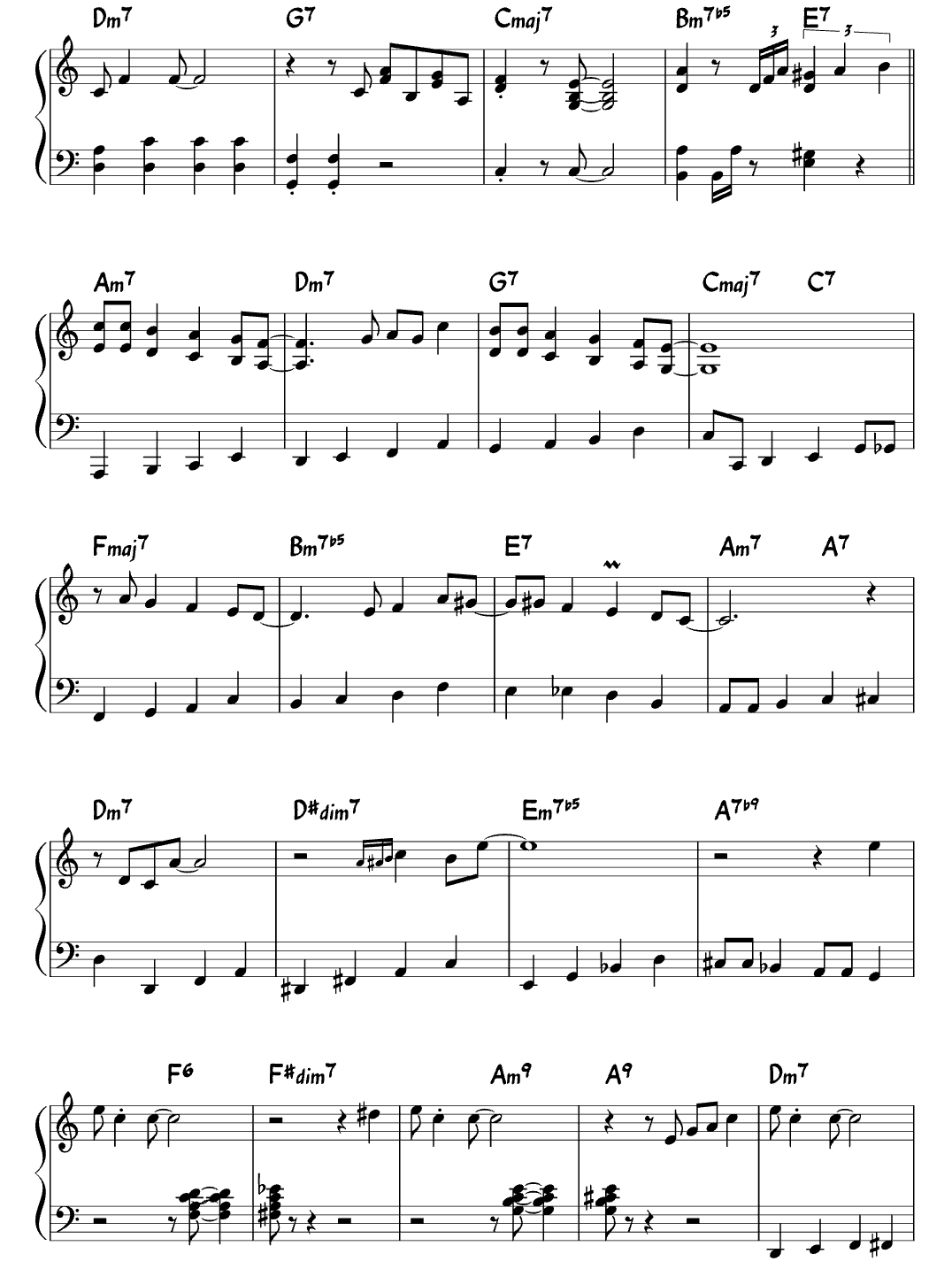
Optical Music Recognition (OMR) has come a long way, and most scan mistakes have nothing to do with the music itself — they come from shadows, bent pages, or low-contrast photos.
Follow these 7 quick habits and you will get clean, playable sheet music on the very first try.
Real sheet music photo ready for scanning in ScoreFlip
1. Flatten the page
A curved piano book spine bends the five staff lines into arcs. Rest a pencil or light clip on the corners — or press the binding gently open — so the staves run straight across the frame.
2. Use even, indirect light
Harsh overhead spotlights cast a dark shadow of your phone right over the middle of the page. Stand near a window or tilt the page slightly toward a diffused light source.
3. Shoot straight on (parallel to the page)
Avoid taking photos at a steep angle from your chair. Hold your phone directly above and parallel to the paper so the left and right margins look vertical.
4. Fill the frame with the music
Don't shoot from two feet away with half the desk visible. Get close enough that the sheet fills the screen, leaving just a thin margin around the staves, and use ScoreFlip's crop handles to trim out stray text or furniture.
5. Scan one page per photo
Two-page spreads cut resolution in half and introduce a dark gutter down the center. Scan the left page first, then scroll to the bottom of the score in ScoreFlip and tap Add Next Page for the right page.
6. Watch out for heavy pencil markings
Light fingerings are fine, but thick circled measures or scribbled arrows crossing staff lines can confuse any scanner. If you have a clean PDF copy, import the PDF directly — digital PDFs scan with the highest accuracy of all.
7. Fix any leftover note in seconds
Even on a tricky older print, you are never stuck. Tap Fix in ScoreFlip to open Editor Studio, turn on the Original scan split-screen view to compare against your photo, and nudge any misread note with ▲ ▼.
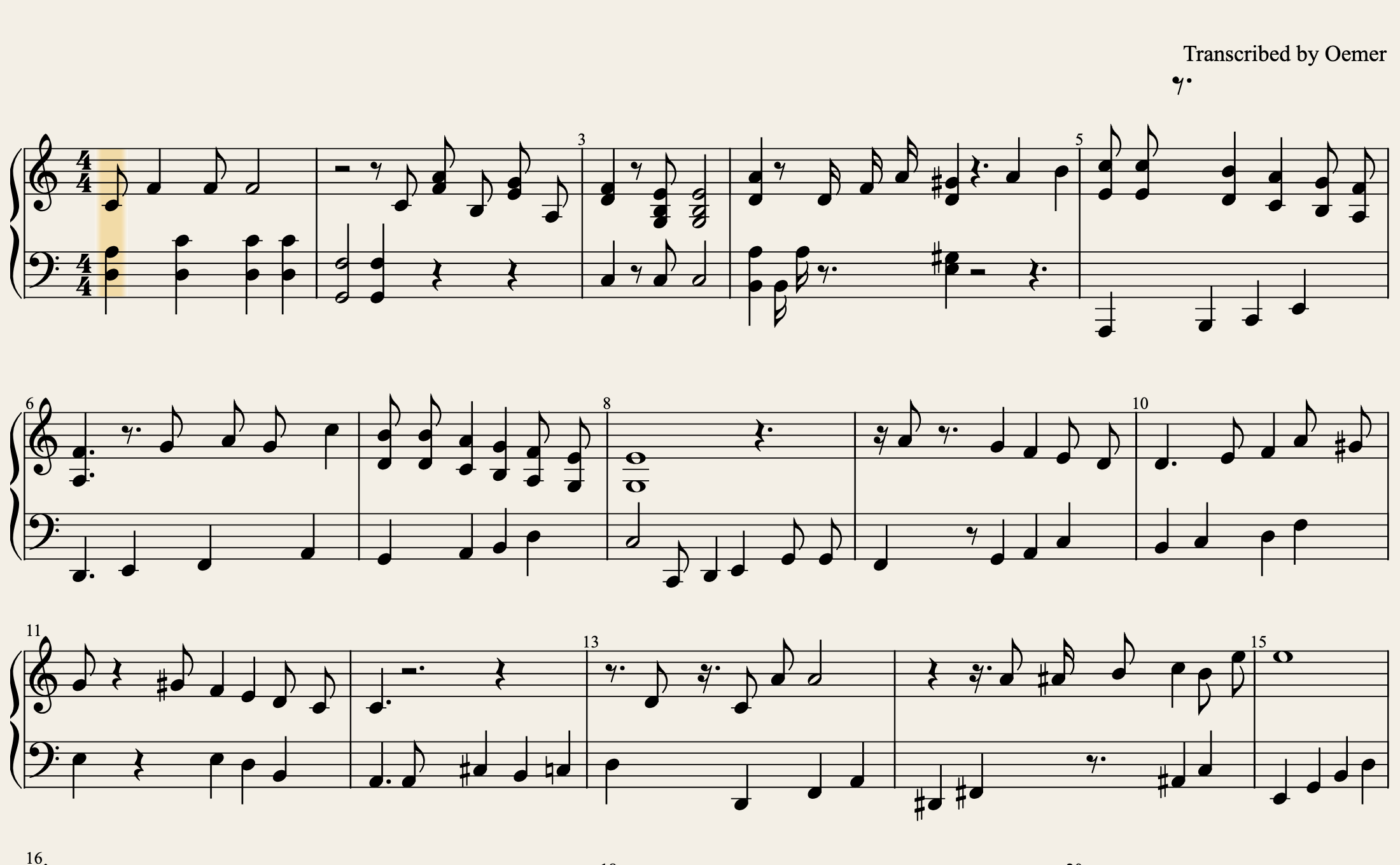 Rendered playable score in ScoreFlip
Enjoyed this deep dive?
Explore more articles on notation scanning, electric keyboards, and gamified music practice in our journal.
Explore All Articles